
Schoology Alfa is the Schoology learning environment used by Alfa Fundación, an education foundation in Monterrey, Mexico.
Many search results make it sound like a brand new app with its own exclusive features.
This guide separates the confirmed facts from the guesswork, so students know exactly where to sign in and what to expect.
Quick Answer
Schoology Alfa is Alfa Fundación’s institution-specific Schoology environment in Monterrey, Mexico, not a separate learning app. Students sign in through alfafundacion.schoology.com with a school-approved Microsoft account, then access only the courses, assignments, grades, and messages that their own teachers have enabled for them.
What Is Schoology Alfa?
Schoology Alfa is not a separate product. It is an institution-specific Schoology environment connected with Alfa Fundación. Schoology, owned by PowerSchool, is the underlying learning management platform. Alfa Fundación provides the students, the courses, and the institutional access.
This distinction matters. When a search result calls it a revolutionary new system, it is dressing up a school portal as a product launch. Students should think of it as their school’s Schoology environment, nothing more and nothing less.
The name appears in several forms online. “Alfa Schoology” and “Schoology Alfa Fundación” point to the same environment. “Home Schoology Alfa” is simply the dashboard a student sees after signing in.
One confusion deserves a clear warning. Searchers in the United States may also meet results for “Alpha School,” a different private school group with its own login portal.
That portal is not Alfa Fundación’s portal. If the page does not belong to Alfa Fundación’s Schoology address, it is not the right door.
Schoology Alfa at a Glance
| Detail | What Is Known |
|---|---|
| Institution | Alfa Fundación |
| Location | Monterrey, Nuevo León, Mexico |
| Platform | Schoology by PowerSchool |
| Institutional login | alfafundacion.schoology.com |
| Sign-in method | School-approved Microsoft account (single sign-on) |
| Account type | Institution-provisioned only |
| Mobile access | Official Schoology app, no separate Alfa app |
Who Is Alfa Fundación?
Alfa Fundación is an educational foundation in Monterrey, Nuevo León, Mexico. Its mission is social mobility through education. It works with students who show high intellectual potential, including students from low-income families.
The foundation runs extracurricular centers and a preparatory school called Preparatoria Alfa Fundación. Its programs cover mathematics, science, literature, computing, creativity, sports, and community service. English and Spanish both feature in its academic work.
That history explains the learning enviroment students enter today. A structured digital platform suits a program built on regular classes, tutoring, and enrichment activities.
Alfa Fundación Timeline
| When | What Happened |
|---|---|
| 2012 | Planning began, with Grupo Alfa working on its social-responsibility strategy |
| February 2013 | First student selection |
| April 2013 | First pilot in Monterrey’s Ferrocarrilera neighborhood, with 95 first-year secondary students |
| March 2014 | Second center opened in San Nicolás |
| October 2014 | Third center opened in Escobedo |
| August 2015 | Preparatoria Alfa Fundación opened |
| June 2018 | First preparatoria cohort graduated |
One honest caveat belongs here. This timeline is the foundation’s documented history. The exact date Alfa Fundación began using Schoology is not publicly verified. Any article that presents a program milestone as a Schoology launch date is guessing.
How Students Sign In to Schoology Alfa
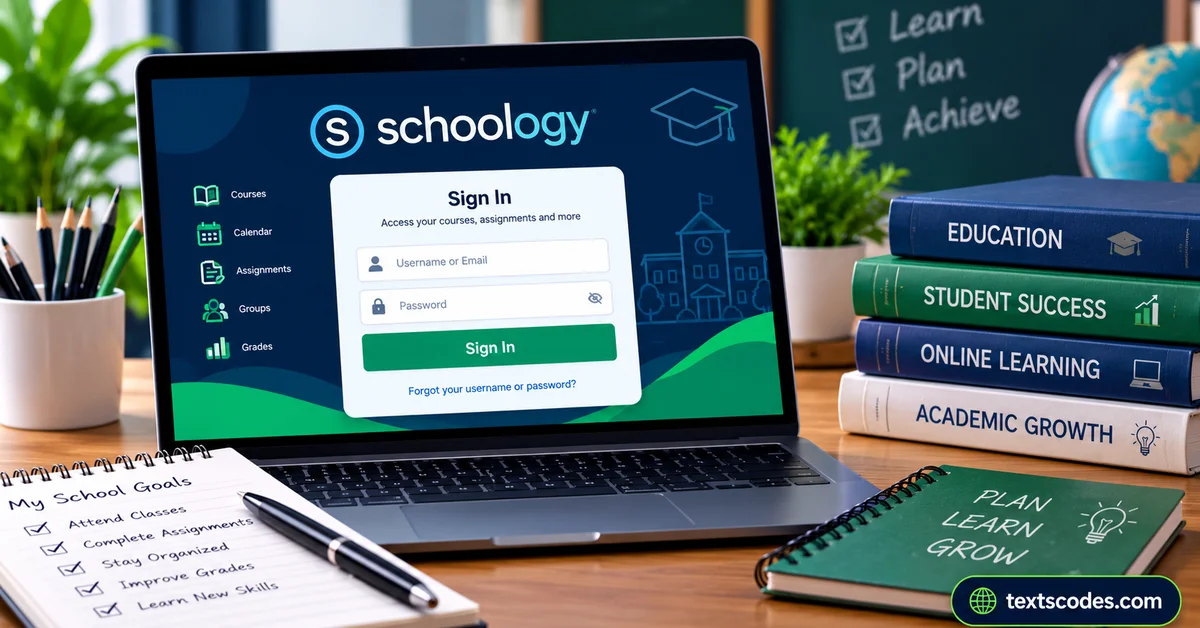
Use the institutional address supplied by Alfa Fundación or your teacher. Public references identify alfafundacion.schoology.com as the Schoology address associated with Alfa Fundación. The login experience can still depend on the institution’s current authentication setup.
A typical sign-in follows these steps:
- Open the Schoology address supplied by Alfa Fundación.
- Confirm that the page belongs to the legitimate Schoology environment.
- Follow the sign-in option shown on the page.
- If Microsoft authentication appears, use the school-authorized Microsoft account.
- Complete any verification the organization requests.
- Wait for the authentication service to return you to Schoology.
- Check your courses, announcements, assignments, and available resources.
Never enter your password on an unofficial “Schoology Alfa login” website. Search results include independent guides that explain the service but cannot access your account.
Domain confusion causes real mistakes, as we saw with a similarly confusing site name where several lookalike domains pointed to different sites.
Why Microsoft Appears During Sign-In
A Microsoft sign-in screen does not mean Schoology and Microsoft are the same service. Educational organizations can configure Schoology to use Microsoft Office 365 authentication, commonly called single sign-on.
In that setup, Microsoft verifies the account first. Schoology then matches the returned identity with an existing Schoology account. For an Alfa Fundación student, the Microsoft screen can be a normal part of the login flow.
Do not create another Microsoft account just because the page redirects you. Use the school-authorized account you were instructed to use.
A personal Outlook account does not automatically open a school course, because Schoology must match the identity with the user record configured by the organization.
If you have more than one Microsoft account saved in your browser, sign out of the unnecessary ones. Selecting the wrong saved account is one of the most common causes of a failed login.
What Students Can Do Inside Schoology Alfa
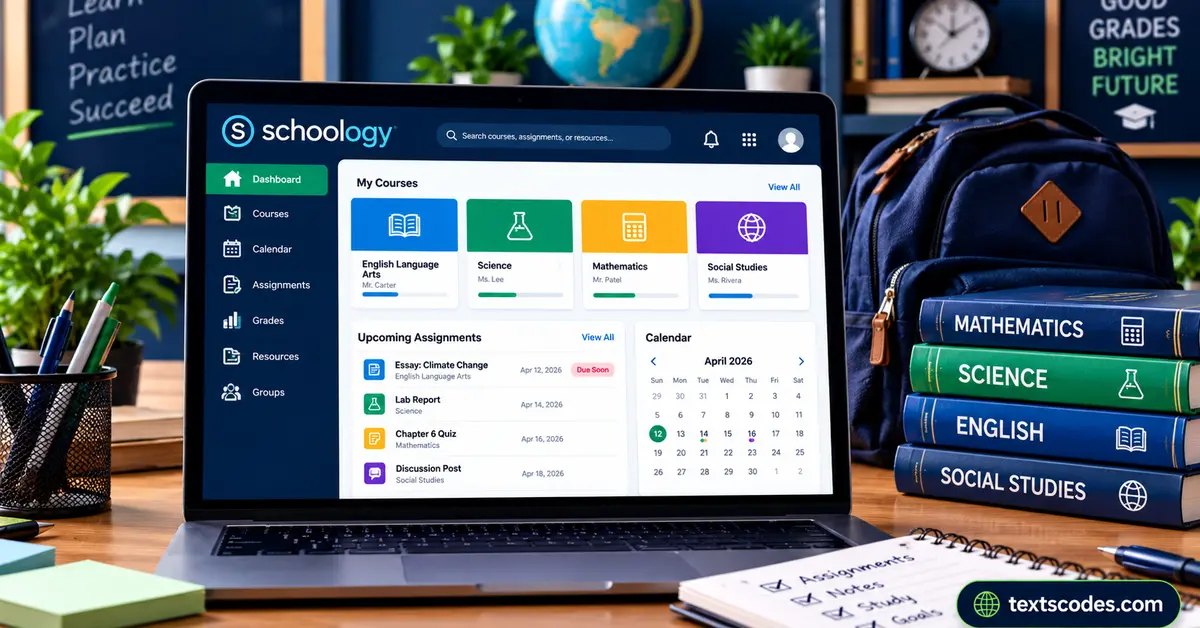
The exact tools visible to a student depend on the courses and permissions assigned to that account. Schoology is built to bring common learning activities into one digital environment, but availability depends on your institution’s configuration.
Courses and Learning Materials
After signing in, students may see a list of courses and materials shared by their instructors. Materials can include documents, links, videos, readings, and activities. A course may organize content into folders, units, or modules.
Check the course area regularly instead of relying only on notifications. An instructor can add or update material after an assignment has already been announced.
Assignments and Quizzes
Teachers can publish instructions, attach materials, set a due date, and provide a submission area. Read the complete instructions before uploading work. Check whether the teacher asks for a specific file format, a text response, or a link.
After submitting, verify that the platform shows the expected submission status. Keep a copy of your work until the assignment has been reviewed. Quizzes can use several question types, and some can be graded automatically.
Grades and Teacher Feedback
Schoology can show grades and instructor feedback when those tools are enabled. Teacher comments are especially useful, because they explain why a submission received a particular result.
Grades inside Schoology should not automatically be treated as official final grades. Some activities may be ungraded or handled outside the platform, so the institution’s own record remains the authority.
Calendar, Notifications, and Messages
Digital calendars and upcoming-work areas help students track deadlines. Review upcoming work at the start and end of each study session, rather than waiting until the due date.
A notification is only an alert. Open the relevant course and read the actual instructions before acting. Announcements, direct messages, and course discussions keep class communication in one place.
What Teachers and Parents Can Do
Teachers use Schoology to organize course content and manage digital learning activities. Depending on their permissions, they may create materials, publish assignments, communicate with students, review submissions, and provide grades or feedback.
The teacher experience differs from the student experience, because instructor accounts carry different permissions. A student should not expect to see course creation or grading tools simply because those functions exist somewhere in Schoology.
Parent access depends on the school’s configuration. Schoology can support parent or observer-style access where the institution enables it. A parent account can typically view a child’s courses and grades without editing them.
Parents should not assume that a student’s login can simply be shared. Student credentials belong to the student account, while parent access normally runs through an institution-controlled process.
The same caution applies to other education tools students find online, including the template and tool sites students use for study work.
Schoology Alfa on a Phone
Schoology supports mobile access, but the exact experience depends on the institution’s configuration and the account type. If Alfa Fundación’s environment uses Microsoft authentication, the mobile login involves the same institutional identity system.
There is no separate Alfa-branded mobile app. Students use the official Schoology app or the institution’s verified web address. Avoid unofficial apps that claim to provide faster Schoology access, and keep both the app and the phone’s operating system updated.
Do not assume personal Schoology credentials will work if the school account uses single sign-on. The school account login process applies on the phone exactly as it does on a computer.
Login Problems and How to Fix Them
Most login problems come from a small set of causes. Work through them in order before assuming the account itself is broken.
- Wrong username or password: check the address, confirm you are using the correct school account, and try again without relying on an old saved password.
- Personal account instead of the school account: sign out of extra Microsoft accounts and select the school-authorized one.
- Login page keeps redirecting: this usually points to an authentication mismatch, not a browser fault. Clear the saved account choice and start from the institutional address again.
- Course is missing: enrollment is controlled by the institution. A teacher or administrator must add the student to the course.
- Assignment not showing as submitted: check the submission status in the course, and keep a copy of the work until the teacher confirms receipt.
Do not create a new account to solve a login failure. A new account can appear to work while showing an empty dashboard.
That does not mean the original courses were deleted. It usually means a different user profile was signed into. When a problem continues after these checks, contact Alfa Fundación or the school administrator, because account permissions sit at the institutional level.
Claims About Schoology Alfa That Do Not Hold Up
This is where our guide earns its keep. Several ranking guides repeat claims that do not survive a careful read.
First, the “evolved product” story. One guide presents Schoology Alfa as a distinct system that evolved from Schoology with enhanced features. No public evidence supports that version. The careful sources agree it is the same underlying platform, configured for one institution.
Second, the self-registration story. Some guides tell readers to create an account through the platform’s official website. Institution-provisioned Schoology accounts do not work that way. The school creates the account, and unauthorized users should not assume registration is available.
Third, the future-features story. Forecasts about AI integration and personalized learning roadmaps are speculation, not a confirmed plan for Alfa Fundación. Some blogs present it as a seperate upgraded system with exclusive tools. That framing should not be trusted without institutional confirmation.
Fourth, the “everything is included” story. A long feature list copied from Schoology documentation does not prove every Alfa Fundación account uses every function. The honest statement is simpler: Schoology can support these activities, and the institution decides which ones are active.
Schoology Alfa vs a Traditional Classroom
Schoology complements the physical classroom rather than replacing it. A digital platform organizes materials and deadlines, but the teacher’s academic instructions remain the most relevant source for course requirements.
For students, the winning routine is simple. Check the dashboard and course list regularly. Look for new announcements and upcoming deadlines.
Organize study time around actual due dates rather than notification volume. If several assignments fall in the same week, break the larger tasks into smaller steps first.
That routine also protects against the platform’s main weakness. An LMS calendar should not be treated as the only source of truth. A teacher may announce a schedule change in class or through another official school channel.
Compare the platform with the teacher’s instructions for anything important. Students comparing learning platforms should apply the same skepticism to tool sites that promise dozens of free tools. The advertised count and the visible tools often differ.
Frequently Asked Questions About Schoology Alfa
What is Schoology Alfa?
Schoology Alfa generally refers to Alfa Fundación’s institution-specific Schoology environment. It uses the Schoology learning management platform for educational activities and access.
Is Schoology Alfa a separate app?
No. Available evidence does not establish a separate “Alfa” edition of Schoology. The term refers to the Schoology environment associated with Alfa Fundación.
Where is the official Schoology Alfa login?
The Alfa Fundación Schoology environment is publicly associated with the alfafundacion.schoology.com address. Use the address supplied by Alfa Fundación, and verify the domain before entering credentials.
Why does Schoology Alfa send me to Microsoft?
The institution can use Microsoft Office 365 authentication for Schoology. In that setup, Microsoft verifies your identity before Schoology matches the account and signs you in.
Can parents access Schoology Alfa?
Parent access depends on the school’s configuration and whether Alfa Fundación provides parent accounts or another family communication method. Contact the school office for the current procedure.
Does Schoology Alfa have its own mobile app?
No separate Alfa-branded app exists. Students use the official Schoology app or the institution’s verified web address, with the same sign-in method as on a computer.
Why can’t I see one of my courses?
Enrollment is controlled by the institution. If a course is missing, the teacher or administrator must add the student, because a public guide cannot change account permissions.
Is Schoology Alfa the same as Alpha School?
No. Alpha School is a different private school group in the United States with its own login portal. Schoology Alfa belongs to Alfa Fundación in Monterrey, Mexico, and the two should not be confused.
Conclusion
Schoology Alfa is best understood as Alfa Fundación’s institution-specific environment within the broader Schoology platform. It gives authorized students and educators a digital place to access courses and manage academic activities. The exact features depend on institutional settings and individual course design.
For login problems, start with the official institutional address and use the account provided by Alfa Fundación. If Microsoft appears during authentication, that can be part of the organization’s configured single sign-on process.
Above all, do not create duplicate accounts and do not enter school credentials into unofficial websites. If you want background on how this kind of platform works in general, read this guide to the learning management system concept.